ANMS 2025 Annual Meeting Mobile App – Detailed Instructions
Detailed instructions (with mobile screen shots) for accessing ANMS 2025 Annual Meeting event/conference via the Whova app:
- Download the Whova app to your mobile device:


Alternatively, if you do not want to download the Whova app, there is a web-based version/portal of the mobile app for accessing the conference details on your laptop or desktop: https://motilitysociety.org/2025/app/web. If you are using the web-based version/portal of the app, skip to Step 6.
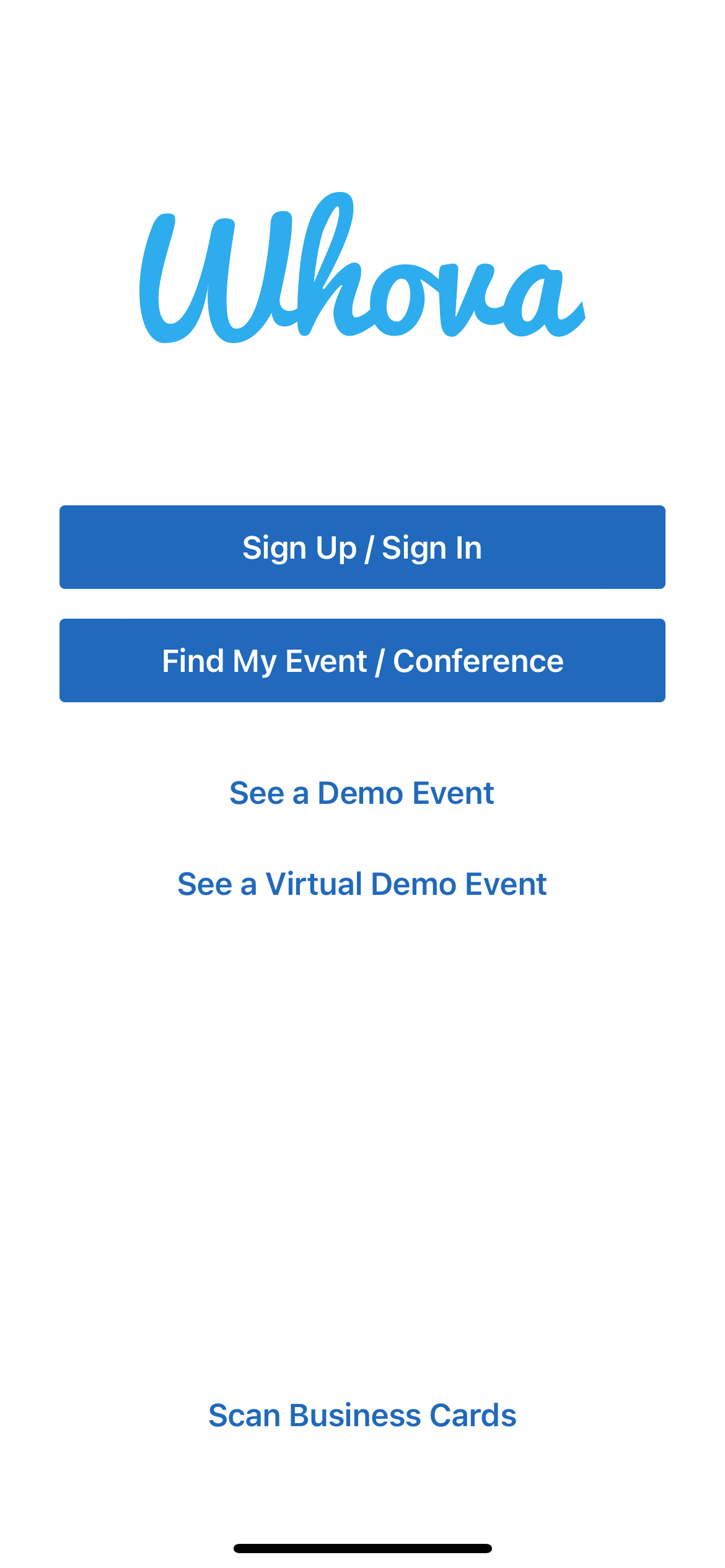
- Once you’ve downloaded the Whova app on your mobile device, open it. And then select the “Find My Event / Conference” option on the start screen.
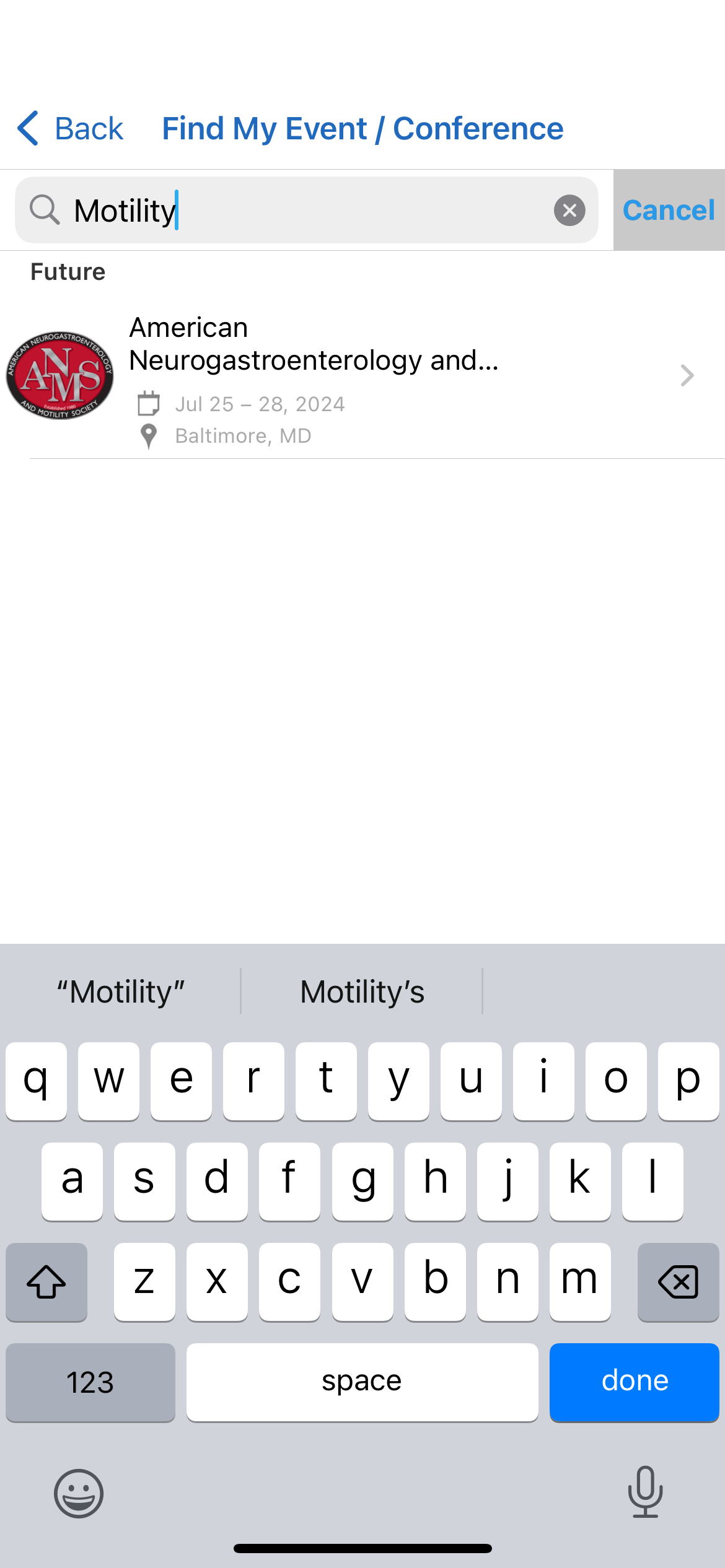
- The simplest way to find the ANMS 2025 Annual Meeting event/conference in the Whova app is to search “Motility” in the search box. Then select the ANMS 2025 Annual Meeting meeting.
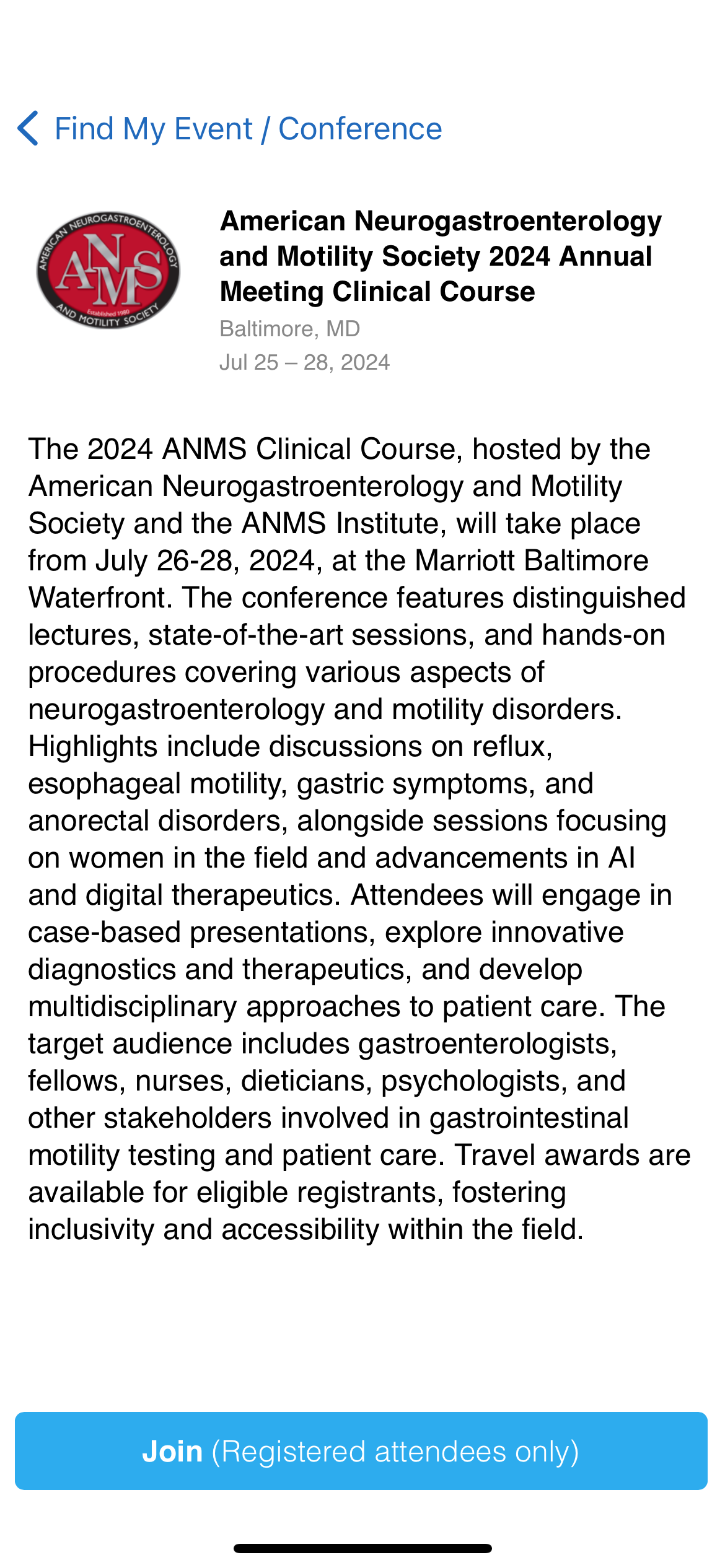
- The ANMS 2025 Annual Meeting details will appear. At the bottom of the screen is a “Join (Registered attendees only)” button. Click it.
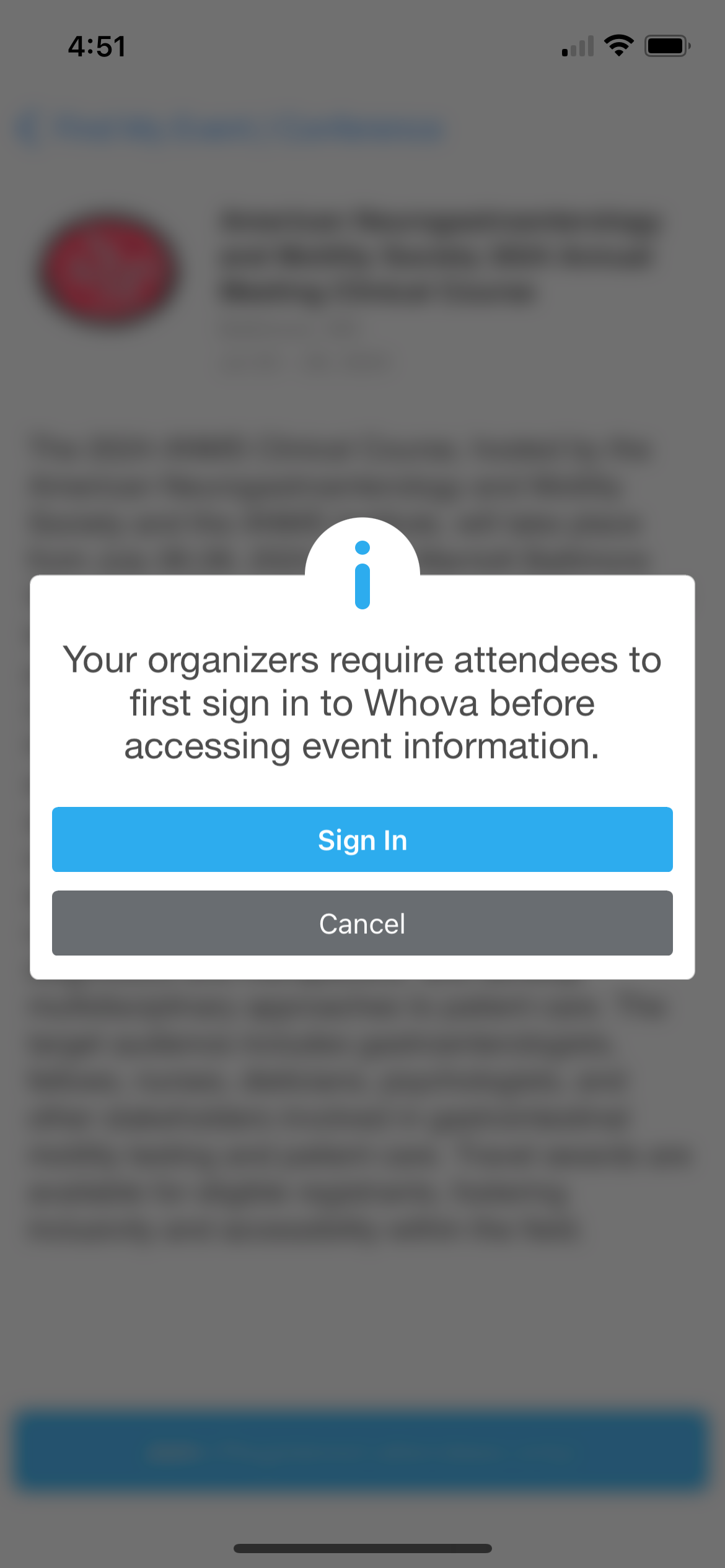
- A message appears that says you must sign in to Whova before acessing the event information. Click the “Sign in” button.
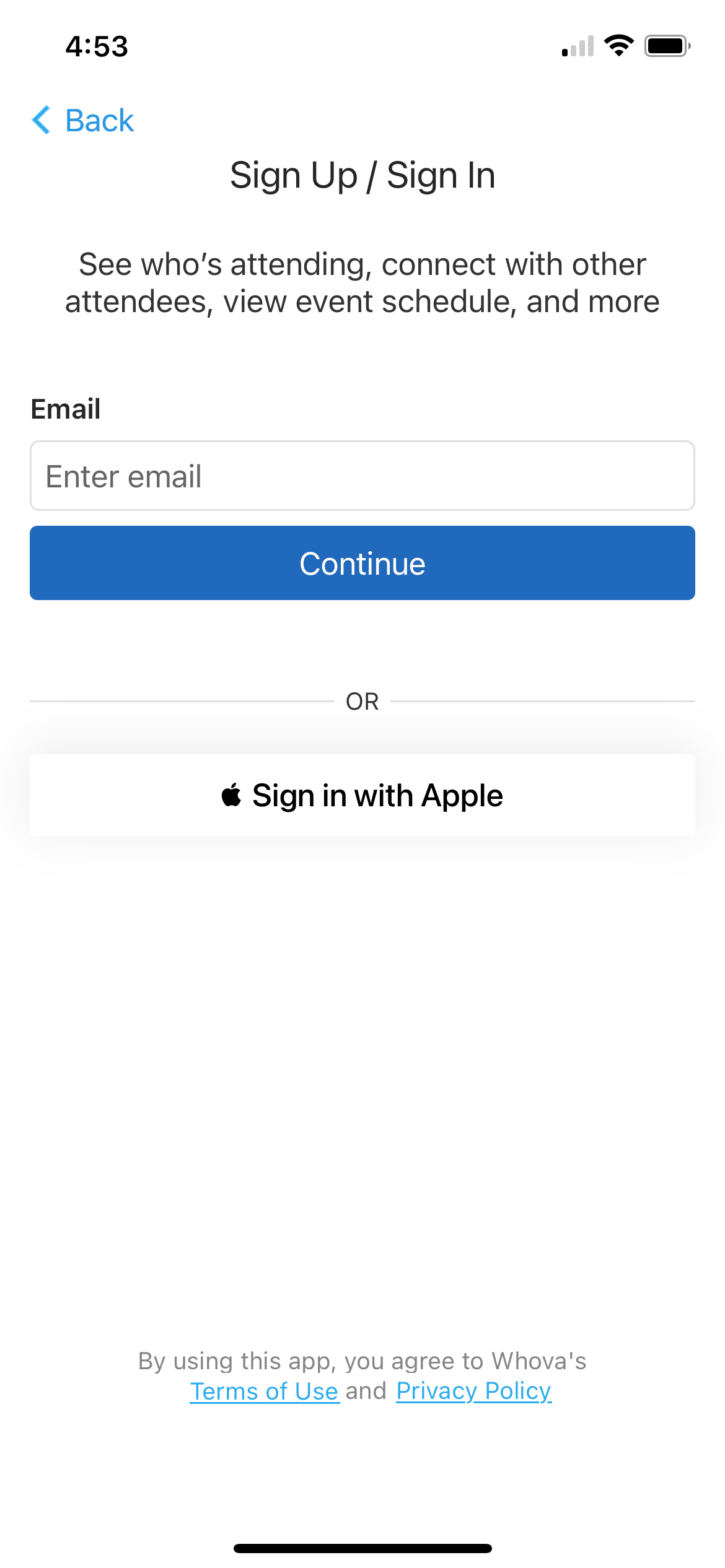
- Once you’ve accessed the ANMS 2025 Annual Meeting conference details via the Whova app (or are accessing the web-based Whova portal) you must create a Whova account using the email address that you used when you registered for the ANMS 2025 meeting. Enter the email address you used to register for the ANMS 2025 Annual Meeting meeting and click “Continue” (or continue to the next step if you are using the non-app, web-based, Whova portal).
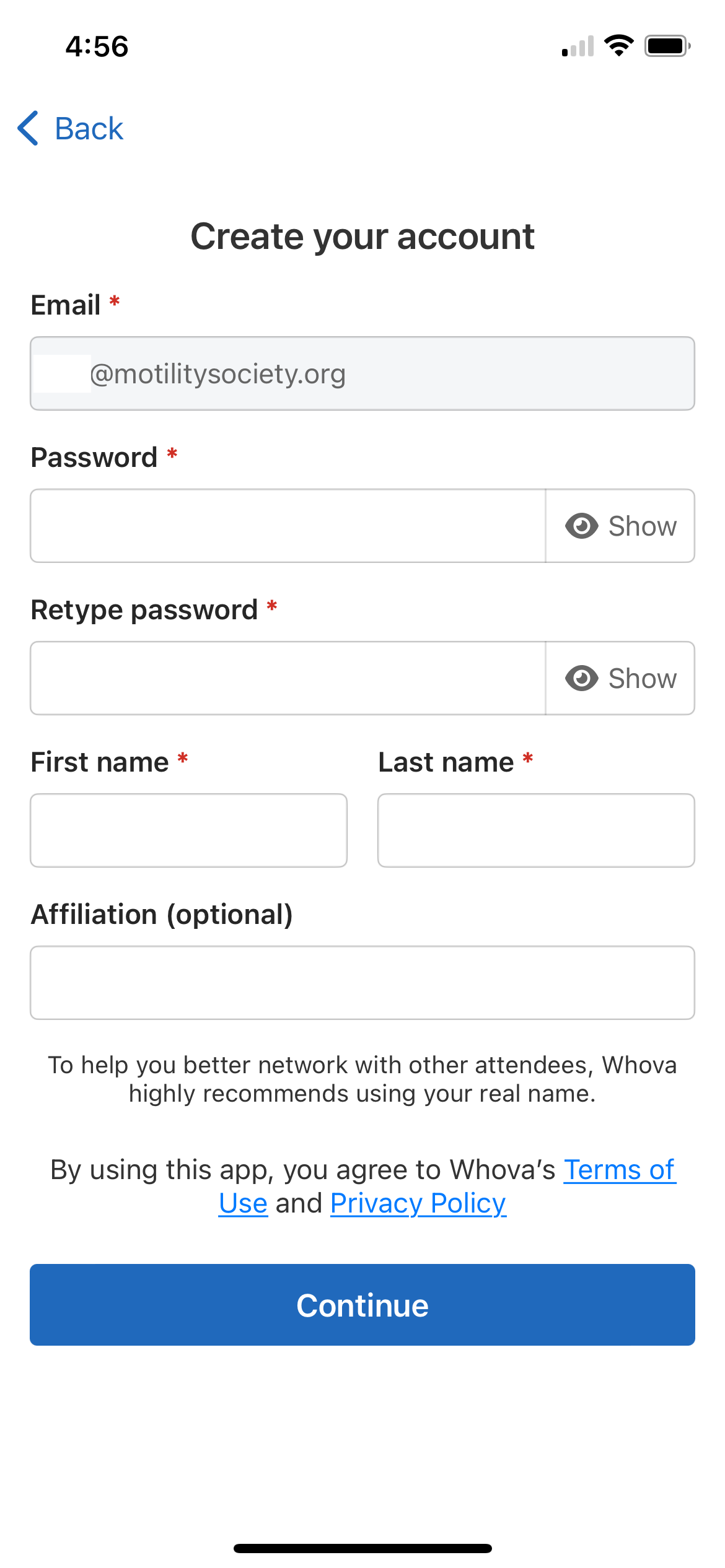
- Proceed by creating a Whova account password and by entering your first and last name. Affiliation is optional. Press “Continue”.
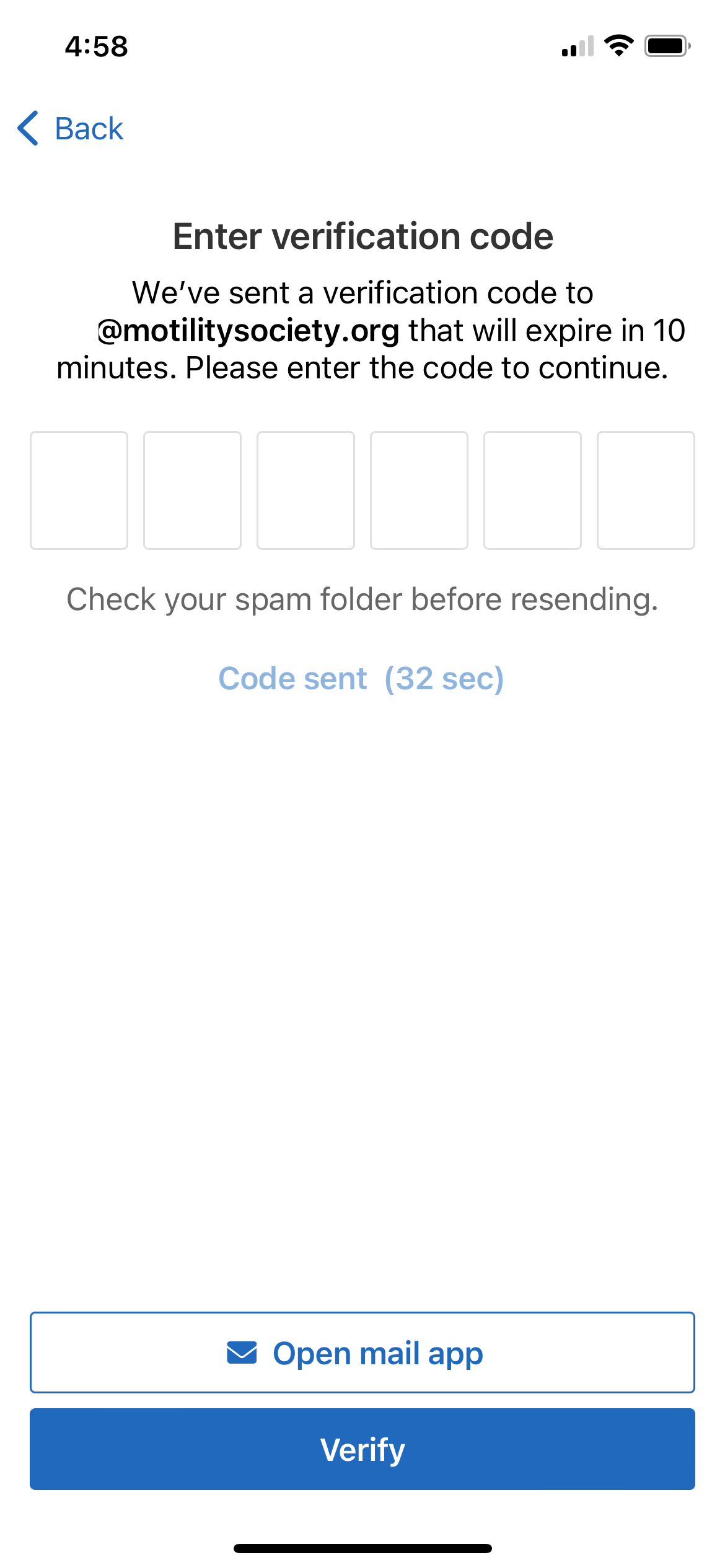
- A security verification code will be sent to your email. Enter that verification code and click “Verify”.
- Once verified, you may optionally add a photo (other attendees can see this photo in the Whova app). Click “Continue”. For networking purposes, you may also optionally enter more profile information. Click “Continue”. Optionally fill in affiliation and/or school information or select “My profile looks good”. If you are using the web-based version/portal, skip to Step 11.
- You are given the option to turn on notifications for the app on your device. This is optional but by turning on notifications you will receive any alerts or information about the ANMS 2025 Annual Meeting meeting in real-time through the app. Either “Turn on notifications” or select “Close”.
You will be taken to the ANMS 2025 Annual Meeting event dashboard. Agenda / session information can be accessed by clicking the “Agenda” icon at the bottom of the app on the dashboard.
Once you’ve created a Whova account, Whova will send you more detailed instructions on using the app for the conference.